

Connecting Confluence
Log in through the Contextual AI UI and follow these steps to configure Confluence as a data source.1. Set Data Source Name & Type
- Click Datastores in the left-hand pane, followed by the Create button in the top right.
- Give your datastore a unique name, then select Third-Party Connection as the method for adding content to your datastore. Click the Next button.
- On the Connection Setup page, you can set up auto top-off to automatically add credits when low, or click Skip for now to bypass this step.
Note: Auto top-off is recommended in On Demand mode to prevent ingestions from failing halfway if you use up your balance.

2. Review Access Levels, Set Account Type & Confluence Site
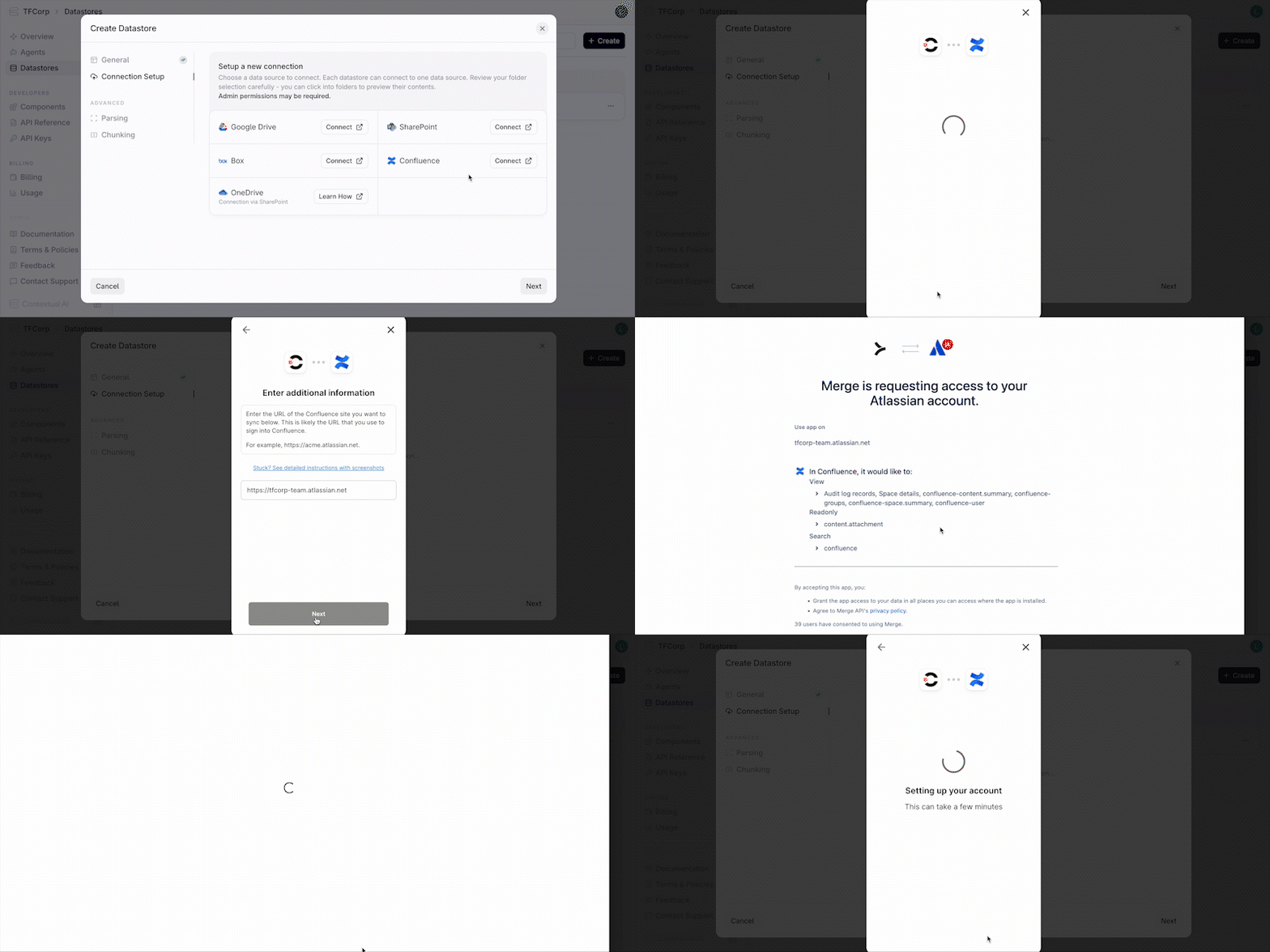
- Click the Connect button next to Confluence.
- Confirm Contextual AI’s read/write access levels and review the end user terms. Click Next to continue.
- On the Enter additional information screen, enter the URL of your Confluence site and click Next.
- On the Connect Confluence screen, click the Open window button.
- Log in to your Confluence account. Review the requested permissions click Accept to continue.
- Click the Next button to install the Forge app and proceed to the next step.
3. Grant Access & Sync Settings
- Select the level of access to grant from your Confluence account:
- Share specific content — Restricts access to only the content you select.
- Share all content — Grants access to all your content in Confluence.
- Click the Finish setup button on the Success! page.
4. Create Datastore & Start Sync
You’re now ready to start syncing your data. Click Create to initialize your connection and create your datastore. You’ll be redirected to your Datastore page, where the Syncing Metadata status will appear. During this stage, Contextual AI syncs the contents of your Confluence site. This process is typically quick but may take some time if you have a large site. Once metadata syncing is complete, ingestion will begin automatically and the status will update to Processing.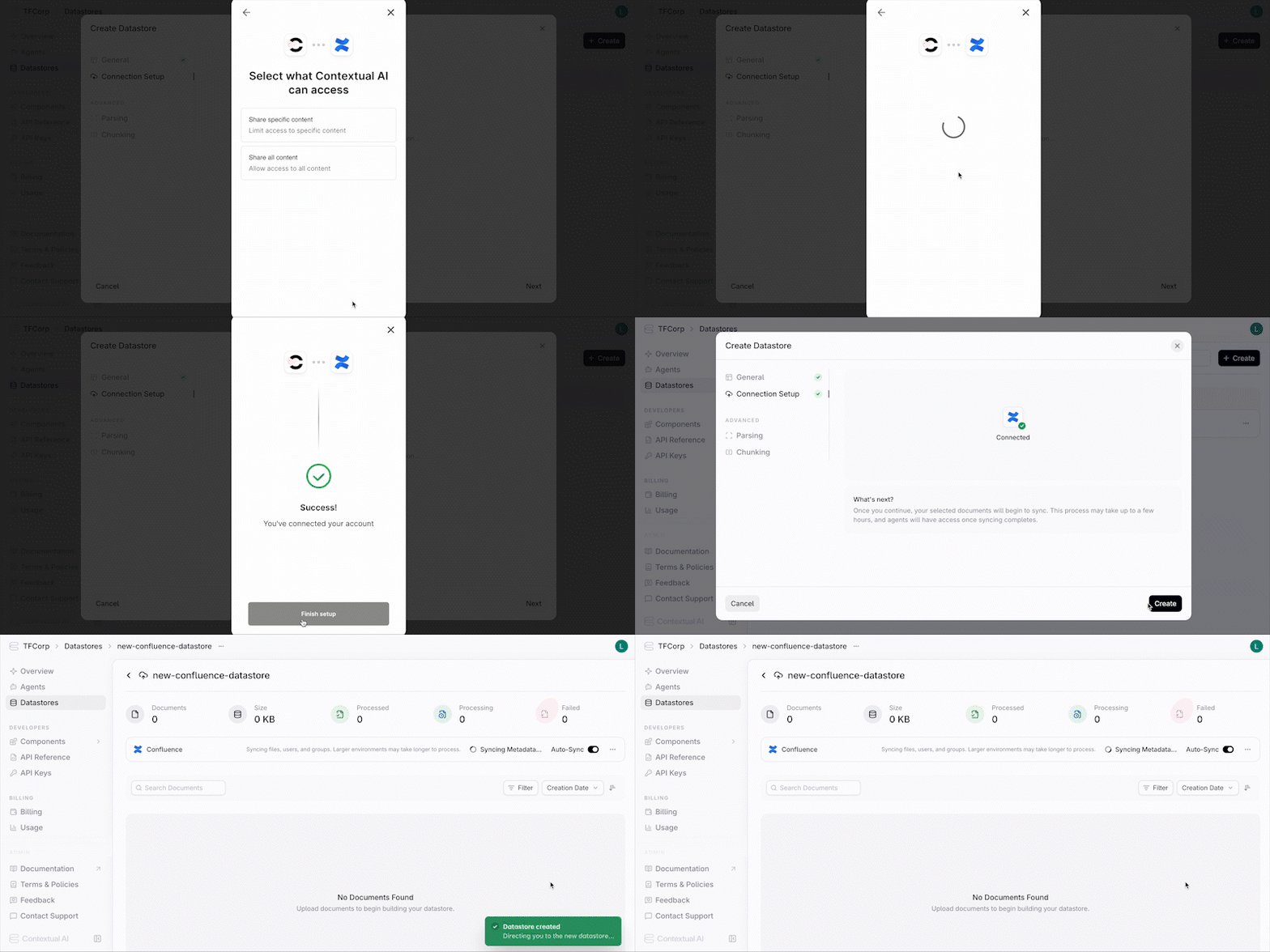
Note: You can begin using your datastore while syncing continues, but you’ll only have access to the documents that have already been ingested.