> ## Documentation Index
> Fetch the complete documentation index at: https://docs.contextual.ai/llms.txt
> Use this file to discover all available pages before exploring further.
# Local File Upload
> Upload your documents to Contextual AI
## Uploading Your Local File
Log in through the Contextual AI UI and follow these steps to upload a local file to use as a data source.
### 1. Set Data Source Name & Type
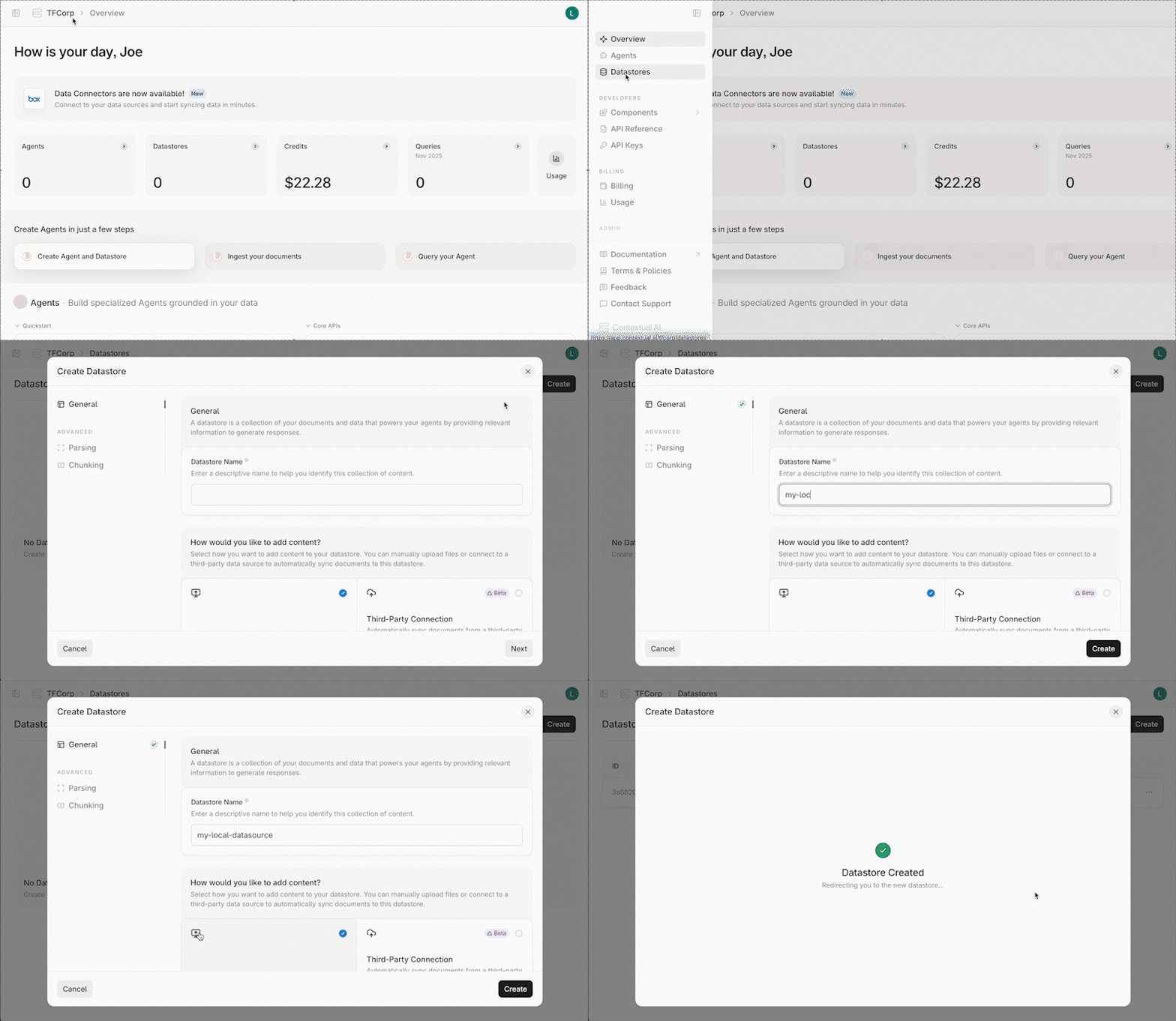
* Click **Datastores** in the left-hand pane, followed by the **Create** button in the top right.
* Give your datastore a unique name, then click the **local file upload button** (the left panel) as the method for adding content to your datastore. Click the **Next** button.
 ### 2. Upload & Process Your File
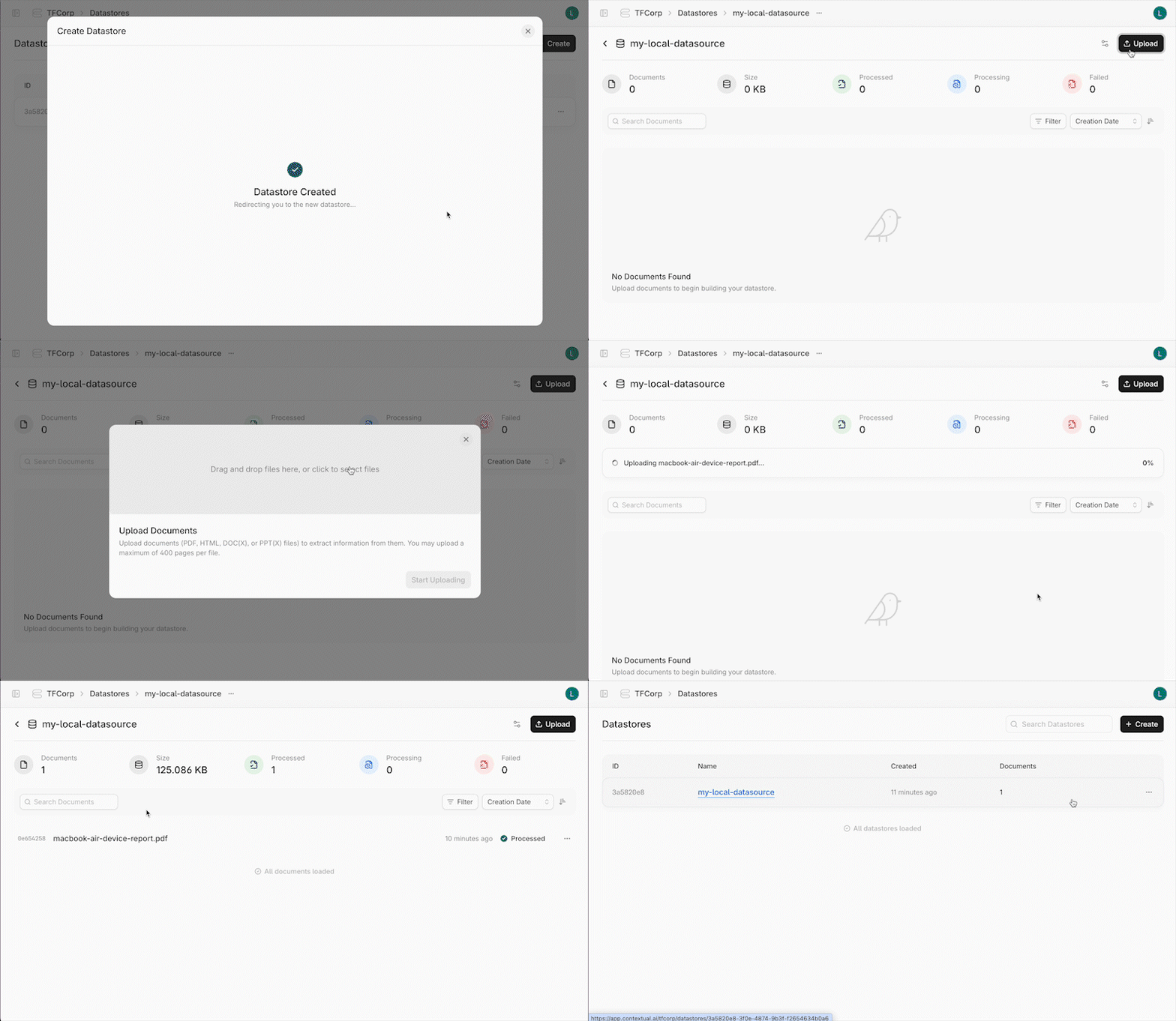
* On the **Datastores** page, click the **Upload** button.
* Drag and drop or select the file to upload, and click the **Start Uploading** button.
* After Contextual AI finishes processing your file, go back to the **Datasources** page. You should see your newly-created datasource with the previously uploaded file.
### 2. Upload & Process Your File
* On the **Datastores** page, click the **Upload** button.
* Drag and drop or select the file to upload, and click the **Start Uploading** button.
* After Contextual AI finishes processing your file, go back to the **Datasources** page. You should see your newly-created datasource with the previously uploaded file.