> ## Documentation Index
> Fetch the complete documentation index at: https://docs.contextual.ai/llms.txt
> Use this file to discover all available pages before exploring further.
# Pricing & Billing
> Pricing overview and how to manage billing in your workspace
## Pricing Overview
Contextual AI offers two pricing options:
* **On-Demand**: Pay-as-you-go pricing with \$25 in free credits to start. No commitments or minimums.
* **Enterprise**: Custom pricing with guaranteed throughput, SLAs, VPC deployment, and dedicated support.
We also offer **Component APIs** (Parse, Rerank, Generate, LMUnit) with usage-based pricing for teams integrating with existing architectures.
See complete pricing details, feature comparison, and enterprise options
***
## Managing Your Billing
### Monitoring Usage
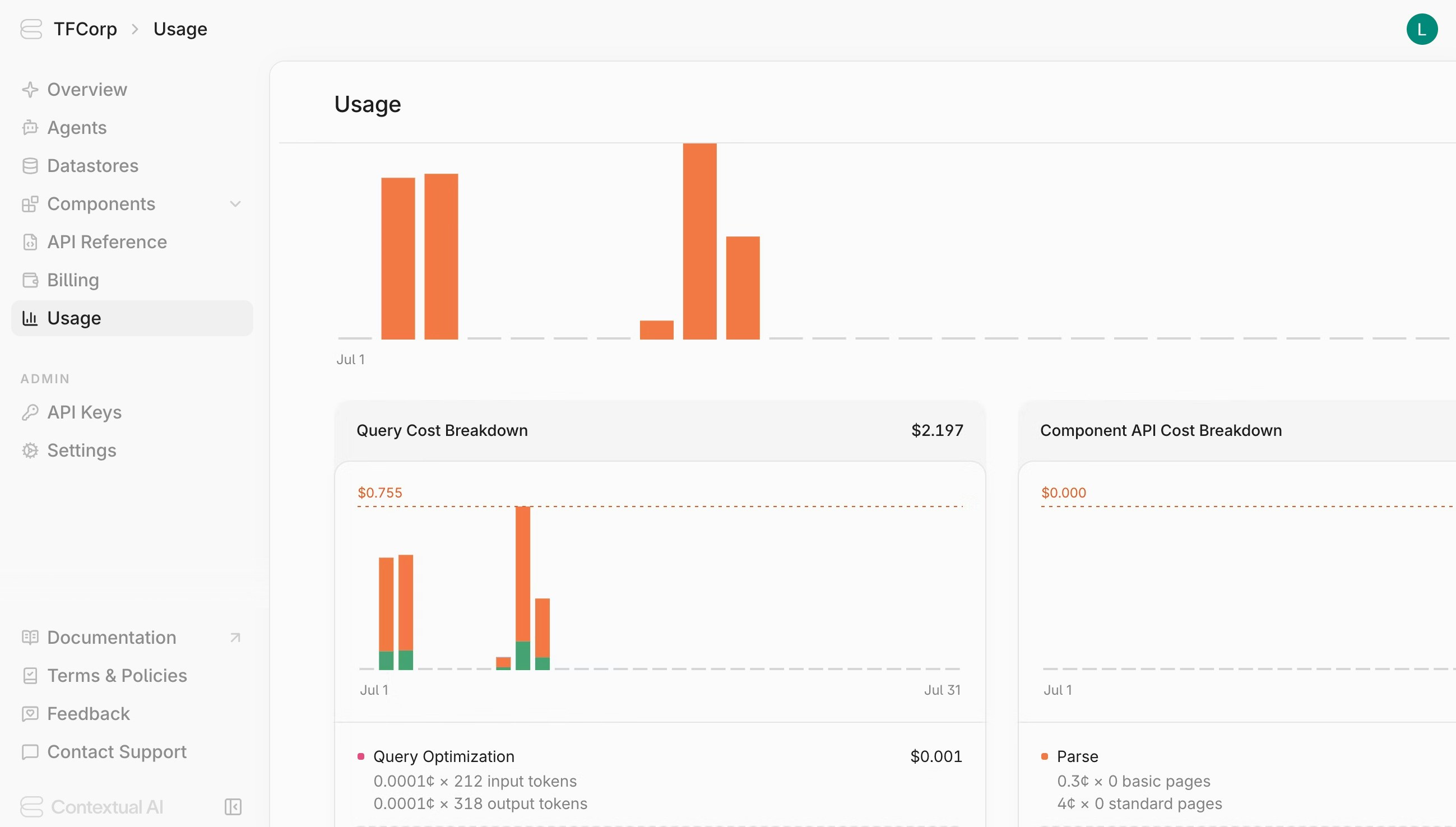
To view your usage statistics:
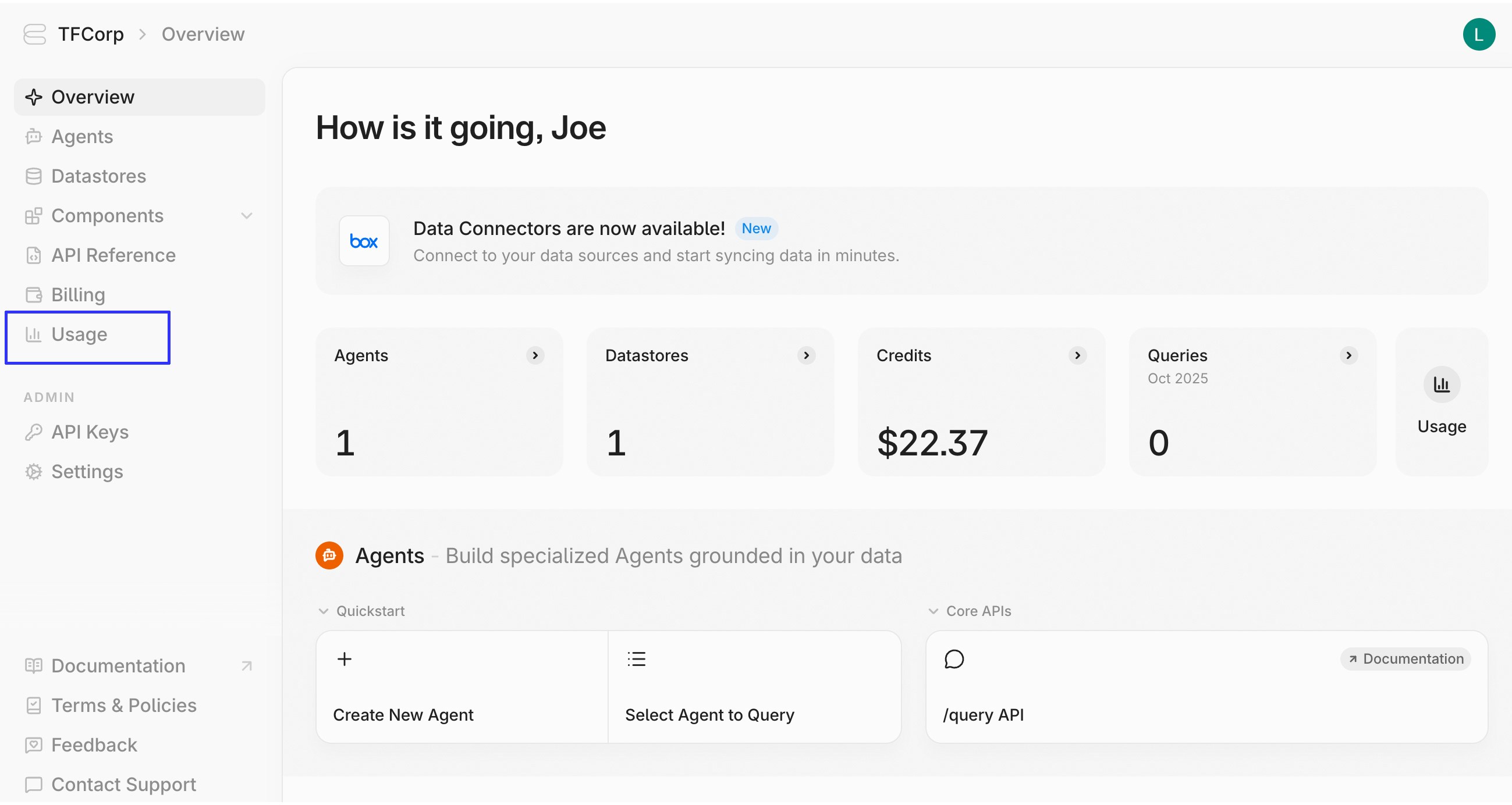
1. Click on **Usage** in the sidebar
 The usage page shows a month-by-month breakdown of your spend across components and endpoints.
 ### Adding Payment Methods
To link a payment method:
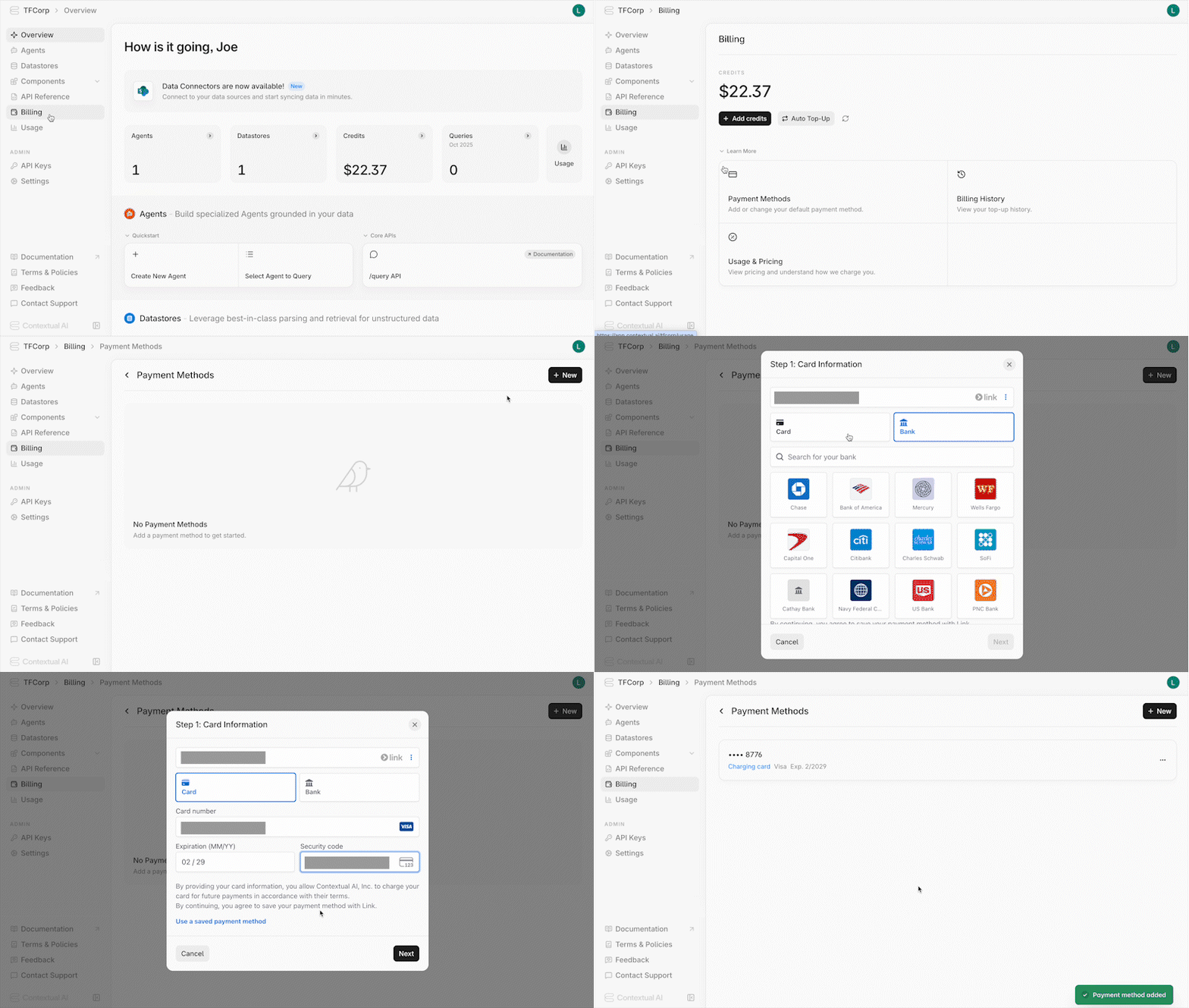
1. Navigate to the **Billing** page in your workspace
2. Click on **Payment Methods** in the **Learn More** section
3. Click the **+New** button
4. Fill out the card or bank information, then click **Next**
5. Fill out your billing address, then click **Save Payment Method**
### Adding Payment Methods
To link a payment method:
1. Navigate to the **Billing** page in your workspace
2. Click on **Payment Methods** in the **Learn More** section
3. Click the **+New** button
4. Fill out the card or bank information, then click **Next**
5. Fill out your billing address, then click **Save Payment Method**
 To remove a payment method:
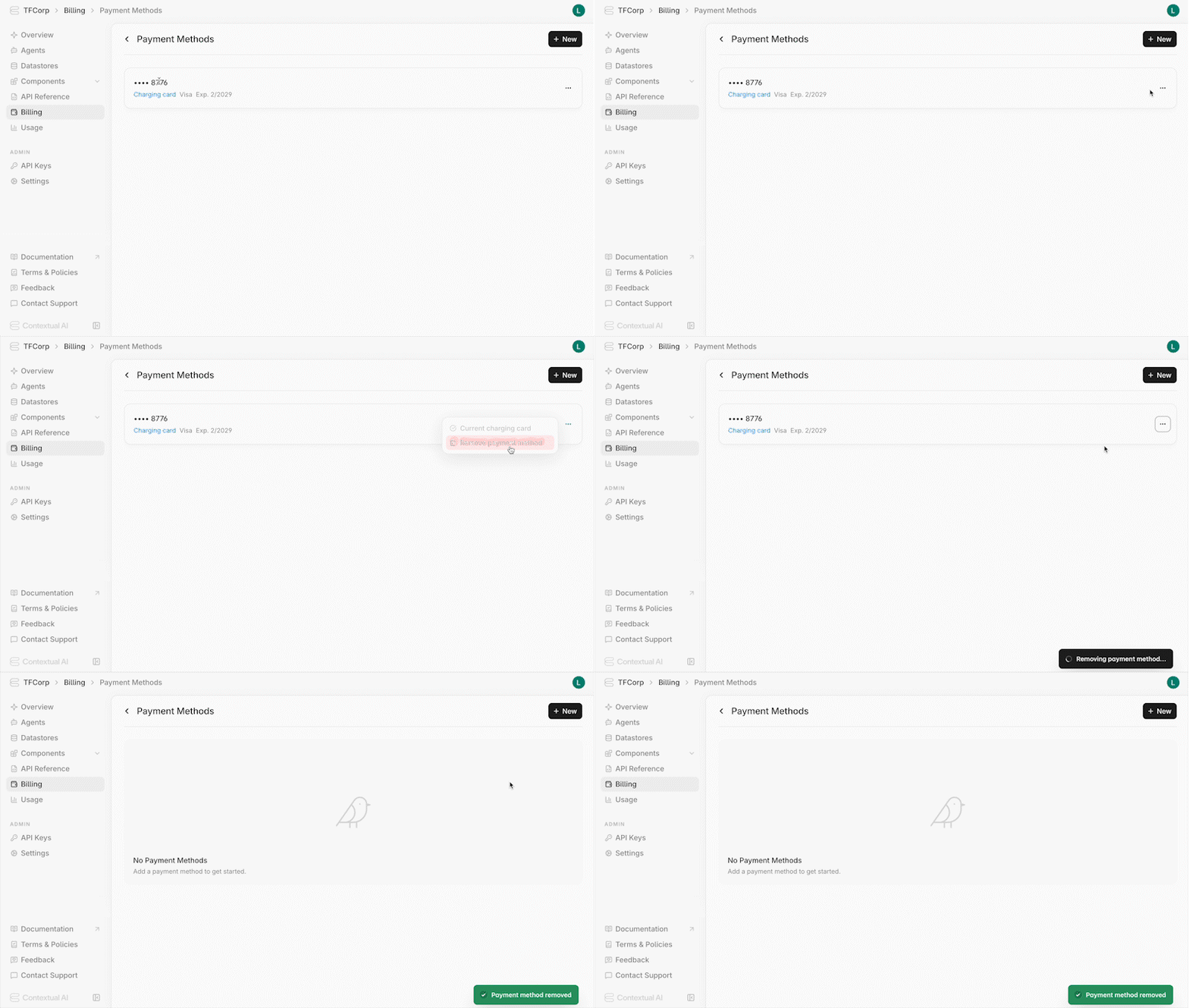
1. Locate it in the list of payment methods
2. Click the menu icon
3. Click **Remove Payment Method**
To remove a payment method:
1. Locate it in the list of payment methods
2. Click the menu icon
3. Click **Remove Payment Method**
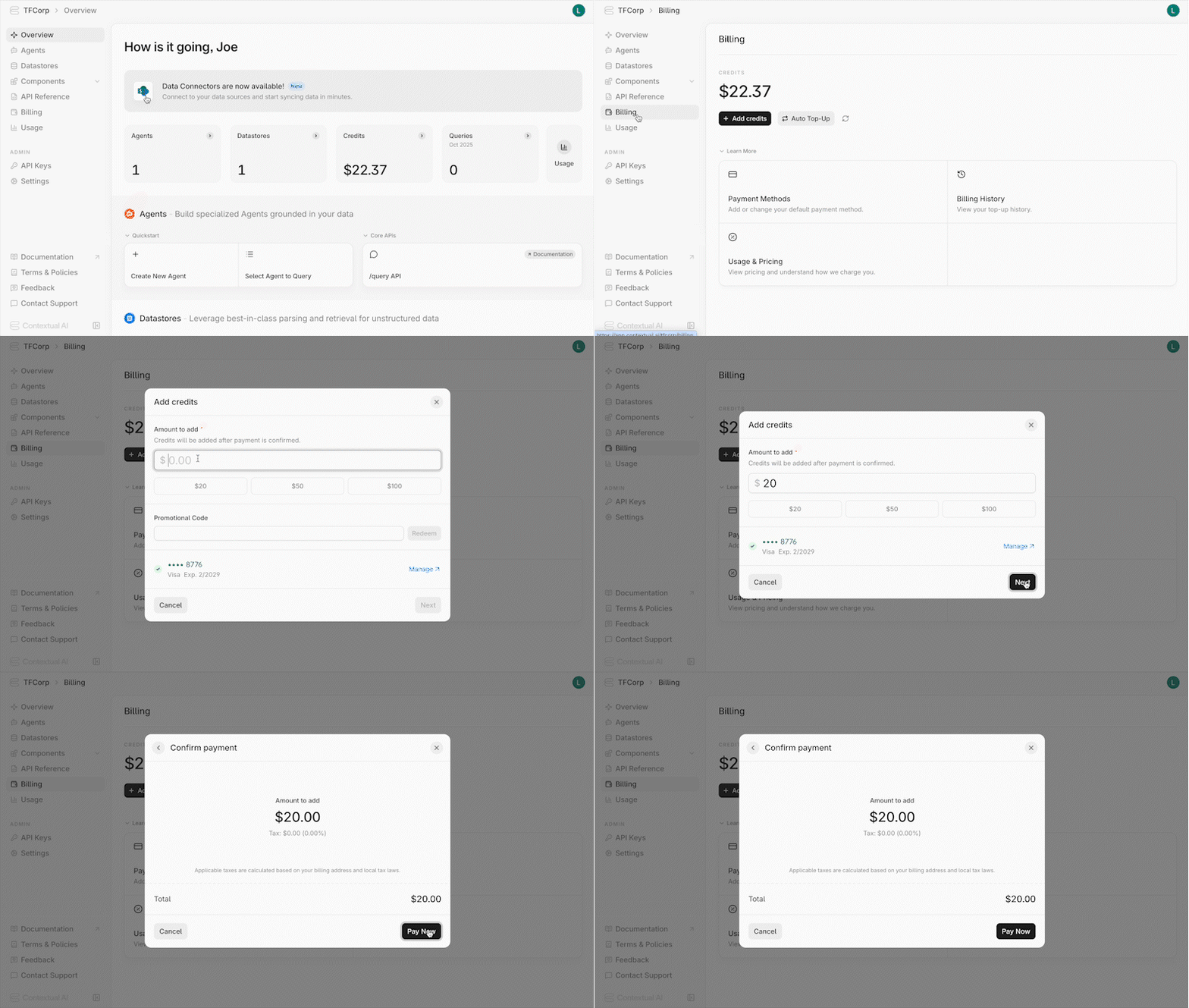
 ### Adding Credits
To top-up your credits:
1. Navigate to the **Billing** page in your workspace
2. Add a valid credit card under **Payment Methods** if you haven't already
3. Click **Add Credits** and fill out the form
4. Click **Next** and confirm the payment
### Adding Credits
To top-up your credits:
1. Navigate to the **Billing** page in your workspace
2. Add a valid credit card under **Payment Methods** if you haven't already
3. Click **Add Credits** and fill out the form
4. Click **Next** and confirm the payment
 ***
For enterprise pricing or questions, contact [sales@contextual.ai](mailto:sales@contextual.ai)
***
For enterprise pricing or questions, contact [sales@contextual.ai](mailto:sales@contextual.ai)